
Photo ID / 3 min read
Already Have a Photo? Check It Before Ordering Passport Prints
Assess an existing image, explain the print specification and check a physical sample before ordering ID-photo packs.
Published / Updated
By Printify editorial. Editorial source check: 22 October 2026. Educational guidance, not authority approval. Operational review: Editorial source check.
Short answer
An existing file can be printed only usefully if the capture and proposed output meet the application’s rules. A print shop cannot repair missing provenance, unsuitable framing or a professional-capture requirement simply by choosing the right paper.
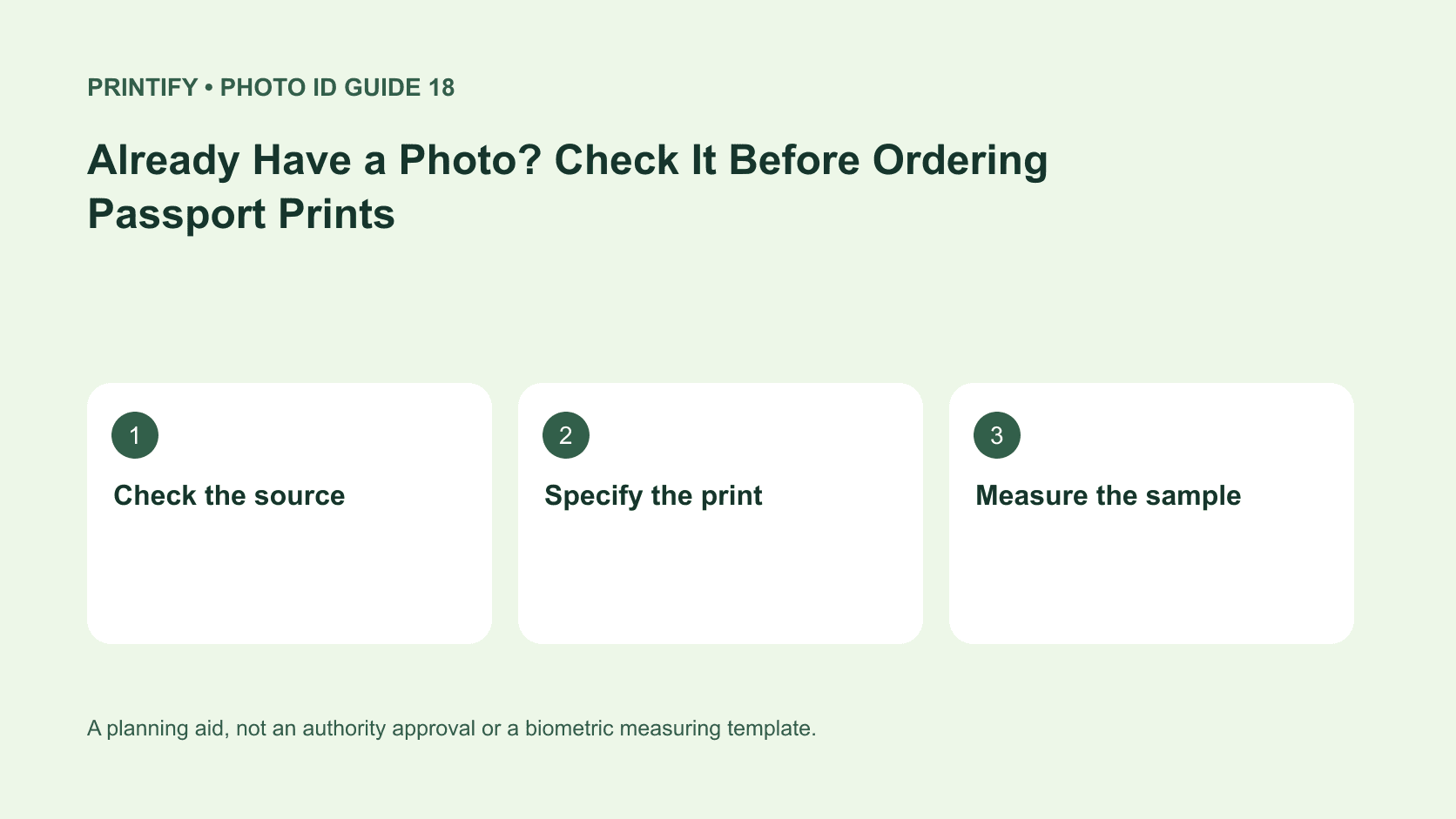
Establish what the file actually is
Locate the highest-quality original and check when and how it was captured. A scanned card, a social-media profile crop and a direct studio file have different limitations. Do not assume that a file called “passport.jpg” has been prepared for your document.
Compare the original with the selected authority’s rules on age, likeness and capture. If required photographer details cannot be supplied for a previously taken image, ask the authority or a suitable photographer what is needed rather than inventing the missing information.
Supply a print specification, not a vague request
Give the printer the document route, physical dimensions, quantity, paper or finish requirements where stated, and any reverse-side information. Ask whether the service includes checking the crop or only reproducing the supplied layout.
For example, a sheet containing several images may already be laid out at the intended size. If the printer applies fit-to-page, every image can change scale. Explain whether the file is a finished sheet or a single portrait requiring layout.
Read the companion guide for this preparation step.
Inspect a sample at actual size
Measure the finished image with a ruler and check head placement against the applicable specification. Inspect colour, sharpness, borders, marks and trimming. A preview on a phone does not establish the dimensions of a physical photograph.
If the sample is wrong, identify whether layout, scaling or source quality caused the problem before printing more. Repeating the same job on different paper will not correct an undersized crop or a low-detail original.
Do not confuse a print pack with a compliant capture
Some routes require professional capture and specific photographer details. Printing a home photograph does not retrospectively create those conditions. Likewise, a previously suitable capture can become unsuitable for reuse if the new application has different conditions.
Check current Printify options before ordering: not every educational workflow described in this guide is necessarily offered as a live product. Keep the original file private and transfer only the assets the chosen printer actually needs.
Before you proceed
- - Use a known, sufficiently detailed original.
- - Check capture, recency and provenance requirements.
- - State dimensions, quantity and handling clearly.
- - Measure and inspect one physical sample before a batch.
Frequently asked questions
Can printing make a selfie professionally captured?
No. A professional-capture condition concerns the capture, not just the paper output.
Why did the correct layout print too small?
Printer scaling or fit-to-page can change the physical size. Check the job settings and measure a sample.
Should I send my passport scan to the printer?
Do not send identity documents merely to print a portrait unless the chosen legitimate process actually requires them.
Next step
Review available services, deliverables and booking conditions before continuing.
Explore Printify Photo ID