
Document Printing / 2 min read
How Do You Turn a Canva Worksheet Into a Reusable Teaching Pack?
Turn a Canva worksheet into a reusable teaching pack by keeping an editable master, a clean learner edition and a checked print PDF.
Published / Updated
By Printify editorial. Editorial review: Ibrahim — source and calculation checks.
Short answer
Turn a Canva worksheet into a reusable teaching pack by keeping an editable master, a clean learner edition and a checked print PDF. Design around the activity and intended paper size before export. A shared design link is not a substitute for the final file you approve for production.
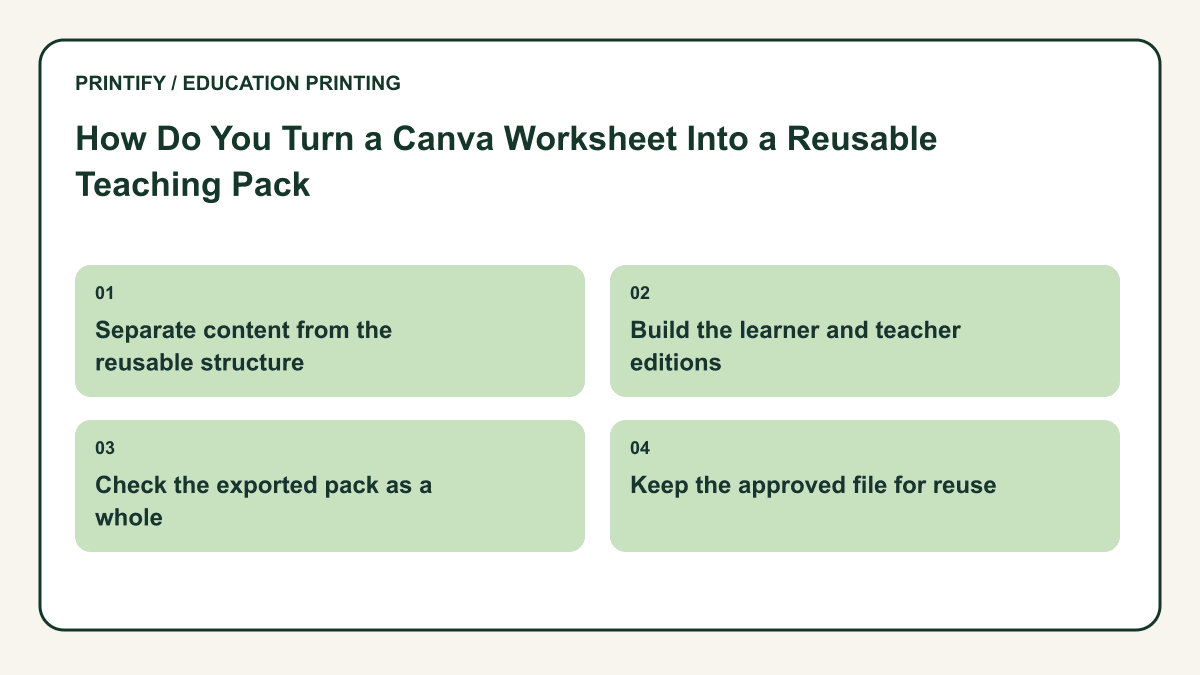
Separate content from the reusable structure
Keep headings, instructions, exercise space and resource codes consistent while allowing lesson-specific questions to change. Create a copy for the current class rather than overwriting the master. A reusable layout should save preparation time without forcing every activity into identical boxes.
Check that any images and elements are permitted for the intended use. The print order does not expand the rights associated with downloaded design assets.
Use this supporting guide for the underlying print setup; the education workflow above defines this article’s specific task.
Build the learner and teacher editions
Put teacher answers and delivery notes in a separate version. Before export, check whether any sample answers remain in the learner file. Inspect tiny labels, lines for handwriting and diagrams at physical size, not only at a comfortable browser zoom.
For standard document pages, do not add crop marks or bleed automatically. Those controls belong to the confirmed production specification. The finished page size and printable content need to match the service you are ordering.
Check the exported pack as a whole
Illustrative example: a two-page activity, a four-page reading and a two-page reflection sheet produce an eight-page learner pack. Thirty copies contain 240 printed faces. A separate two-page teacher answer file printed twice adds four faces.
Open the exported PDFs and verify those counts. Changing a source design after export does not update an already downloaded or uploaded file. Re-export and inspect again after a correction.
Keep the approved file for reuse
Store the editable master and final PDF yourself with clear dates or version codes. Do not assume a print supplier retains a teaching archive or automatically reorders the latest design. When ordering for a Dubai classroom, review current quantities, settings, quotation and delivery, even if the same resource was used last term.
Find related classroom, student and academic planning questions.
Your decision checklist
- - Keep an editable master
- - Separate learner and answer editions
- - Confirm page size before export
- - Inspect the downloaded PDF
- - Version the approved lesson copy
Frequently asked questions
Can I upload only a Canva editing link?
Supply the complete approved printable file rather than assuming the provider can access or edit the design.
Should every worksheet include crop marks?
No. Follow the confirmed output specification, not a universal export preset.
Next step
Upload the approved file, compare the current quotation and check available delivery before paying. Specific finishing and handling need confirmation.
Review Printify document options