
Document Printing / 2 min read
Why Can't I Download or Print a File Shared by My Teacher?
If a teacher-shared file will not download or print, check the account, file permissions and available source version first.
Published / Updated
By Printify editorial. Editorial review: Ibrahim — source and calculation checks.
Short answer
If a teacher-shared file will not download or print, check the account, file permissions and available source version first. The document owner or school administrator may need to provide an authorised printable copy. Printify cannot remove a school restriction simply because you need a paper version.
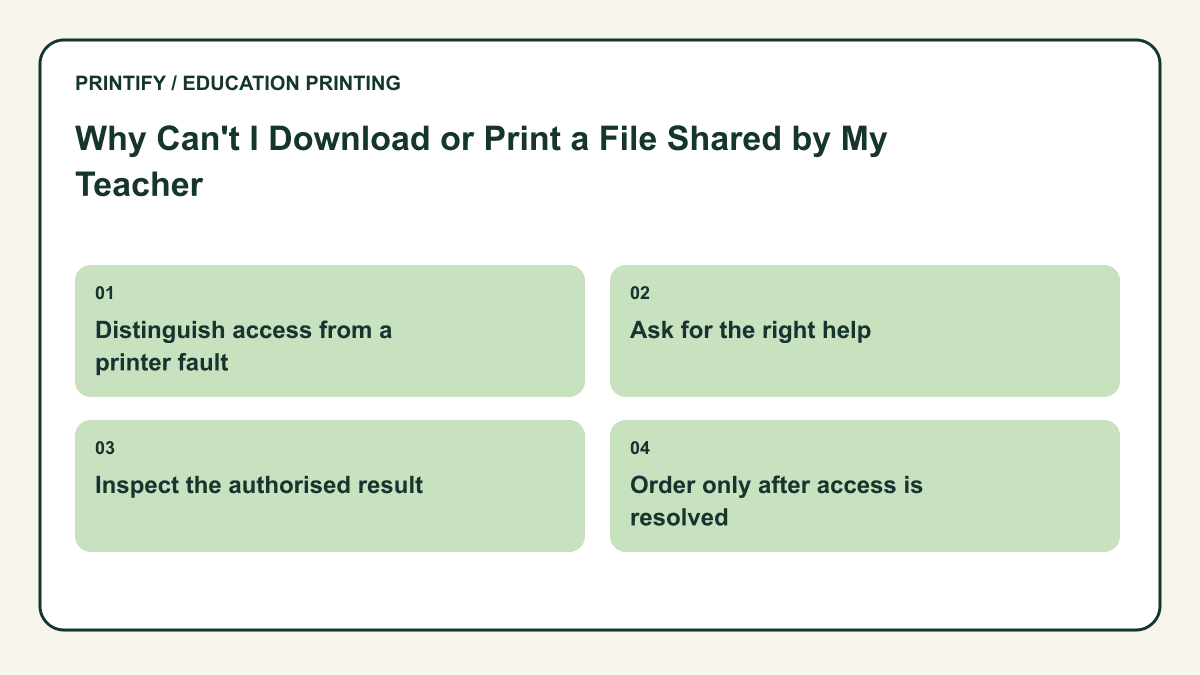
Distinguish access from a printer fault
If the file cannot be opened, confirm you are signed into the intended school account and have accepted the relevant sharing invitation. If it opens but print or download is unavailable, the document’s sharing settings may be the issue.
Try to identify the exact symptom before reporting it: missing print control, permission message, blank preview or a download that contains only a link. Those are different problems and need different responses.
Use this supporting guide for the underlying print setup; the education workflow above defines this article’s specific task.
Ask for the right help
Give the teacher or support team the assignment name and the exact problem without posting private pupil material publicly. Google’s Classroom guidance explains that teachers control how attached Drive files are shared, including view and individual-copy arrangements.
Request an approved PDF where appropriate. Do not use screenshots or conversion tools to circumvent intentional restrictions. A student copy may also differ from the teacher’s original, so confirm which version should be printed.
Order only after access is resolved
Save the authorised file in a recognisable location, then review Printify’s processed page count and print settings. For a Dubai order, check delivery availability before relying on the assignment deadline. Keep the school’s content-permission question separate from the supplier’s delivery question: solving one does not automatically solve the other.
Find related classroom, student and academic planning questions.
Your decision checklist
- - Confirm the school account
- - Record the exact error
- - Ask the owner for permitted access
- - Inspect the complete authorised PDF
- - Check order and deadline separately
Frequently asked questions
Is disabled printing always a broken printer?
No. File permissions or school account controls may prevent printing before the job reaches a printer.
Will an upload service unlock a protected file?
Do not assume that. Obtain an authorised, usable source file first.
Next step
Upload the approved file, compare the current quotation and check available delivery before paying. Specific finishing and handling need confirmation.
Review Printify document options