
Document Printing / 2 min read
How Do You Turn Google Classroom Assignments Into a Printable Homework Pack?
Prepare a homework pack by obtaining the authorised assignment attachments, checking each file and assembling only the required material in the intended order.
Published / Updated
By Printify editorial. Editorial review: Ibrahim — source and calculation checks.
Short answer
Prepare a homework pack by obtaining the authorised assignment attachments, checking each file and assembling only the required material in the intended order. A Google Classroom page is not itself a print-ready pack. Keep learning-platform access separate from the PDF you upload to Printify.
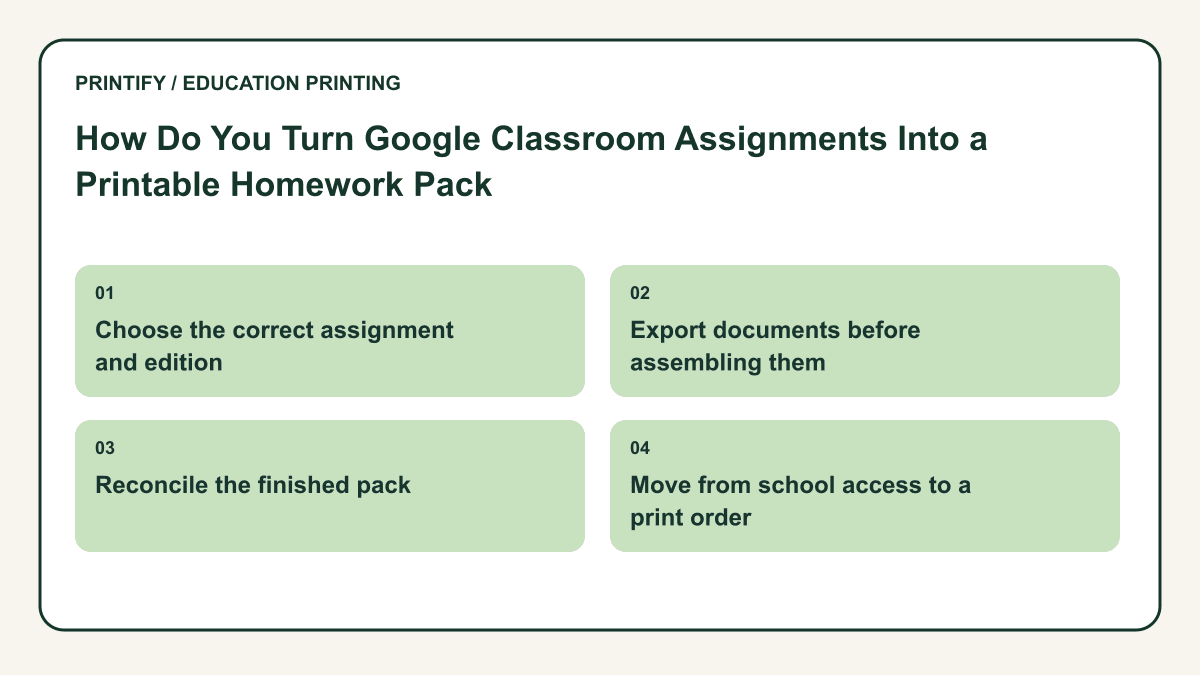
Choose the correct assignment and edition
Open the assignment using the school account with access. Read the teacher’s instructions before downloading attachments: a reference article, answer template and completed example may have different purposes. Include only what the learner is expected to use.
Classroom sharing settings vary. If download or print access is restricted, ask the teacher for an authorised printable version rather than trying to bypass the restriction or sharing account credentials with a supplier.
Use this supporting guide for the underlying print setup; the education workflow above defines this article’s specific task.
Export documents before assembling them
Save each required document in a printable format and inspect it independently. Check equations, images, tables and any writing areas. An editable document may export differently; a screenshot may omit pages that are present in the actual attachment.
Arrange the approved PDFs into a logical sequence. Keep a short list matching the assignment names to the pages included so you can identify a missing resource without relying on a browser’s open tabs.
Reconcile the finished pack
Illustrative example: a four-page reading, a three-page exercise and a one-page instruction sheet make an eight-page pack. Five identical copies contain 40 printed faces and, at duplex, 20 sheets without extra blanks or covers. A separate two-page answer key should not be repeated in every learner copy.
Check the combined file from beginning to end. If the teacher asks for separate documents or particular page breaks, preserve those requirements rather than merging everything merely for convenience.
Move from school access to a print order
Upload the actual checked file, not a Classroom URL that a printer cannot access. For Dubai delivery, leave time to receive and inspect the pack before the homework session. Confirm current Printify settings and the payable total; the platform’s assignment deadline does not guarantee that an external service can meet it.
Find related classroom, student and academic planning questions.
Your decision checklist
- - Read assignment instructions
- - Obtain authorised attachments
- - Inspect each exported document
- - Check the assembled page sequence
- - Upload the file rather than a school link
Frequently asked questions
Can I send my Classroom password with the order?
No. Supply an authorised printable file instead of access to the school account.
Does combining attachments change their due dates?
No. Follow the teacher’s original submission requirements and deadlines.
Next step
Upload the approved file, compare the current quotation and check available delivery before paying. Specific finishing and handling need confirmation.
Review Printify document options